For pastors: your safety net
You do not have to watch the site day to day. Tentmaker is built for churches that rely on volunteers, so most mistakes are small and can be put right. Here is where the edges are.
Three roles
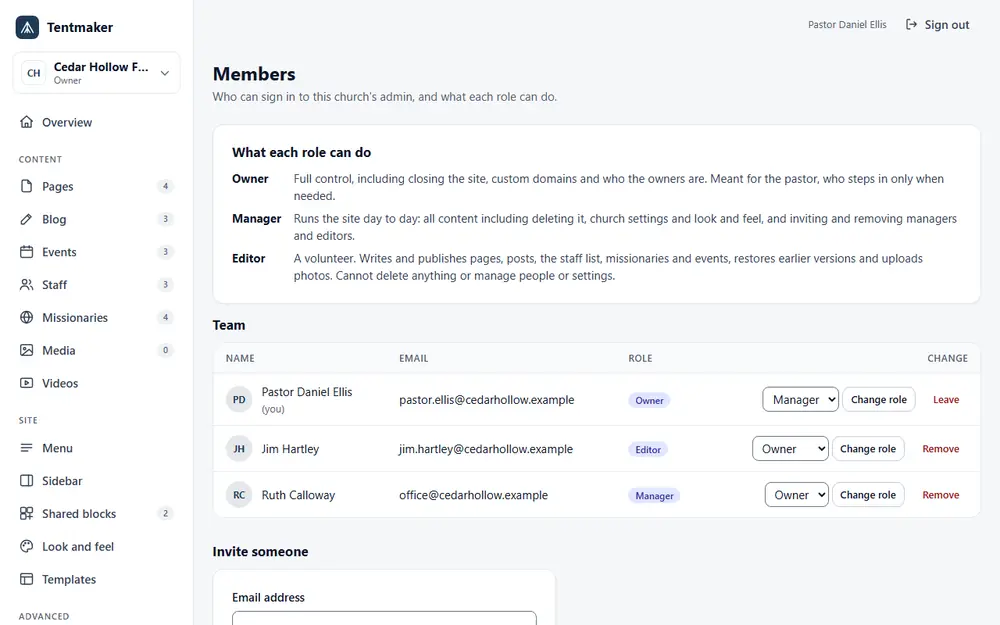
Every person on the team has one role, and the role decides what they can see and change.
Owner
Full control, including closing the site, the custom web address and who the other owners are. Meant for the pastor, who steps in only when needed.
Manager
Runs the site day to day: all content, including deleting it, the church's settings and look, and inviting and removing editors and managers.
Editor
A volunteer. Writes and publishes pages, posts, staff, missionaries and events, restores earlier versions and uploads pictures. Cannot delete anything or manage people or settings.
What each role can do
A button a role may not use is hidden, and the server refuses it anyway. A test in the project compares this table with the list the product really checks.
| What you want to do | Owner | Manager | Editor |
|---|---|---|---|
| See the Overview, the pages, and the names and roles of the team | yes | yes | yes |
| Write and edit pages, posts, staff, missionaries and events | yes | yes | yes |
| Publish or unpublish a page or a post | yes | yes | yes |
| Restore an earlier version of a page | yes | yes | yes |
| Upload pictures and videos | yes | yes | yes |
| Delete a page, post, person, event, picture or video for good | yes | yes | no |
| Change the church's settings, look, menu and sidebar | yes | yes | no |
| See the team's email addresses | yes | yes | no |
| Invite, change or remove editors and managers | yes | yes | no |
| Make someone an owner, or change or remove an owner | yes | no | no |
| Connect the church's own web address | yes | no | no |
| Close the site | yes | no | no |
What a volunteer can and cannot do
An editor can:
- Change the words and pictures on any page and publish them. Visitors see the change at once.
- Take a page or a post off the site (Unpublish).
- Change the staff list, events and missionaries, which save live.
- Upload pictures and videos.
- Make and publish shared blocks. These appear on every page that uses them, so a careless change can show up in many places.
An editor cannot:
- Delete anything for good.
- Open the settings, the look, the menu, the sidebar, the custom style rules or the web address.
- Invite or remove anyone, change anyone's role, or see anyone's email address.
- Close the site.
- Add a script or any code to a page. What an editor types is cleaned, and public pages run no script of their own.
Keep the number of managers small. Editors are for everyone else.
History, and putting things back
Every time a page is saved, Tentmaker keeps that version, with the time and who saved it. To put an earlier version back, open the page, open its History, find the version, press Restore, then Publish. A page that was unpublished is live again when it is published. The same history and Restore are there for shared blocks, the menu, the sidebar and custom style rules.
The Overview shows the pages edited most recently, who edited them and when.
What cannot be undone
These are the edges, so you know exactly where they are.
- A change to a staff member, an event, a missionary or a blog post replaces the old words. Those have no history yet.
- Anything a manager or owner deletes for good is gone, and deleting a page deletes its history too.
- Closing the site takes it offline at once and then permanently deletes everything. Only an owner can do it, and it asks them to type the church's name first.
People are removed in one step, and they lose access at once. What they wrote stays.
Protect your own sign-in
People sign in with a link sent to their email, so anyone who can open your email can sign in as you. Use a strong password on your email and, if you can, two-step sign-in. If you ever step down, make the new person an owner first, then remove yourself. A church can never be left without an owner.
The whole page, and the rest of the guide, is at help.thetentmaker.org.